VENDOR DASHBOARD
Setting up your dog friendly accommodation
Vendor Dashboard allows you to make any changes to your listing. Change photos or description, edit Booking Settings, find how much revenue your listing has generated through Pupsy and much more. Keep on reading to find out how to set up your dog friendly accommodation on Pupsy.
Should you have any questions at all, send us an email at [email protected] or check out our tutorial videos at the end of the page!
Dashboard Overview
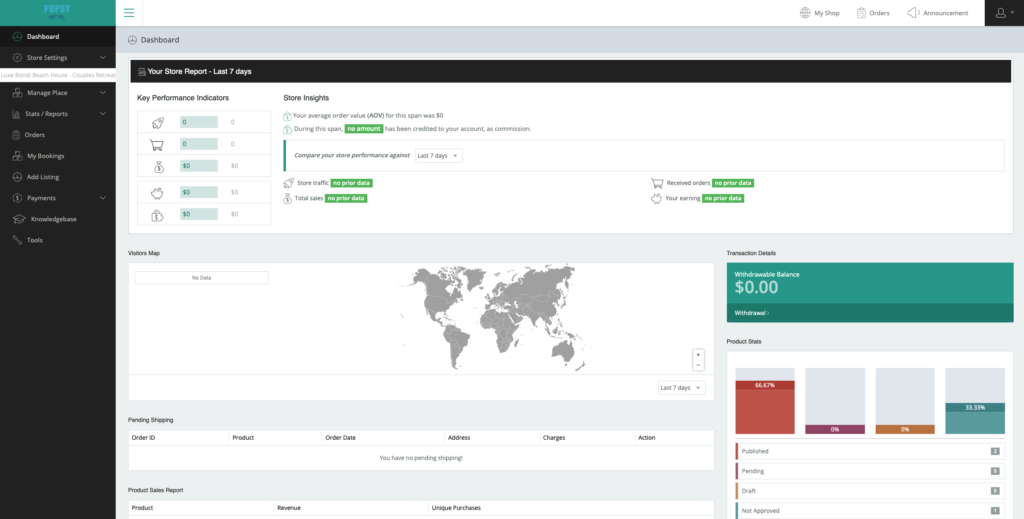
Once you log in to your dashboard, you will land on the Vendor Dashboard Overview page. You will see statistics of your listing here including Bookings, Earnings, Traffic etc...
Choose the property you want to edit from the drop down menu on the top left corner. Then click MANAGE PLACE and choose either Edit Listing Description or Edit Booking Settings.
IF YOU HAVE MULTIPLE PROPERTIES IT IS IMPORTANT YOU SWITCH BETWEEN THEM USING THE FOLLOWING PROCESS:
- CHOOSE THE PROPERTY YOU WANT TO MANAGE FROM THE WHITE DROP DOWN
- CLICK MANAGE PLACE
- CHOOSE EDIT DESCRIPTION OR EDIT BOOKING SETTINGS
EDIT LISTING DESCRIPTION
Edit Listing Description has the details of your listing (description, photos, address, features, amenities...). Choose the listing you want to edit from the drop down menu and then click MANAGE PLACE --> Edit Listing Description
Basic Information
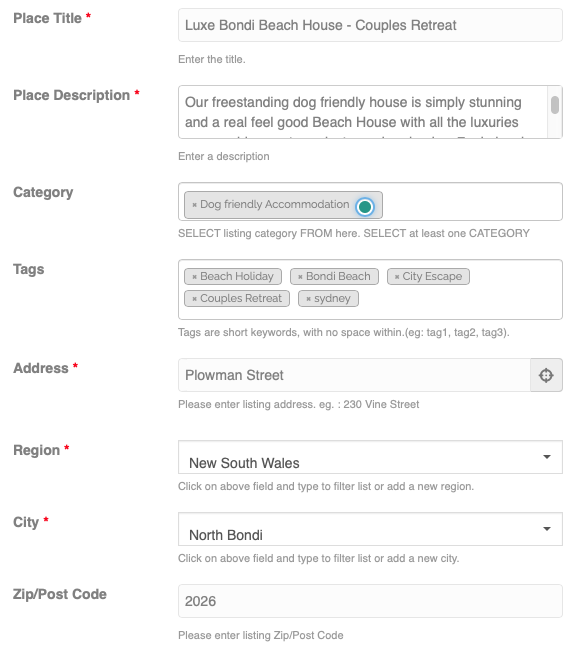
Place Title
This is how your place will show in searches
Place Description
Describe your place to your customers. How can they enjoy their time at your place, any specific dog friendly highlights, distance to attractions... Talk about the look & feel of your place and be factual
Category, Tags & Address
These have all been set up for you. Do not remove any tags as you may miss out on promotional activities on Pupsy e.g. "Find Dog Friendly Beach Holiday Accommodations"
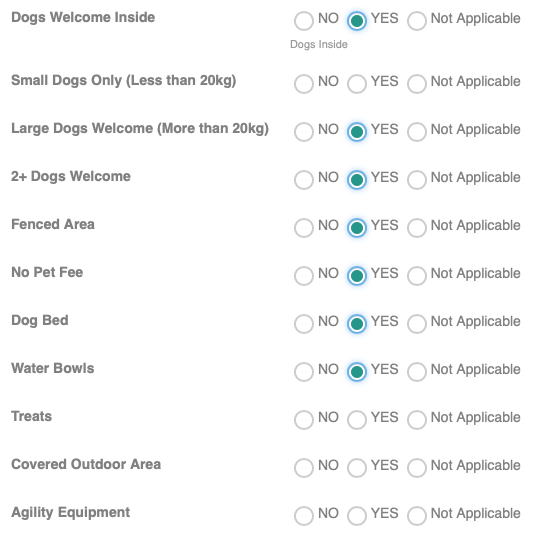
Furry Features
We have set these up based on the information you have provided. If anything has changed, simply update the features here
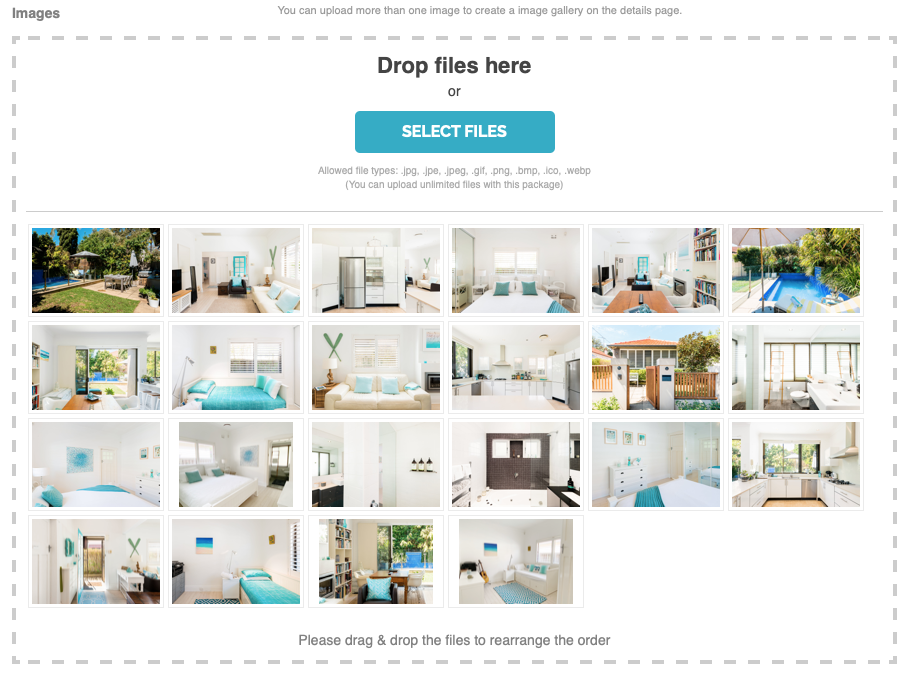
Property Images
Drag & Drop your images. Showcase all the rooms in your property as well as the outdoor areas. Remember to take photos of all your dog friendly features e.g. fenced outdoor area, bedding, water bowls...). Check out more pawsome photoshoot tips for your property.
Living Arrangements
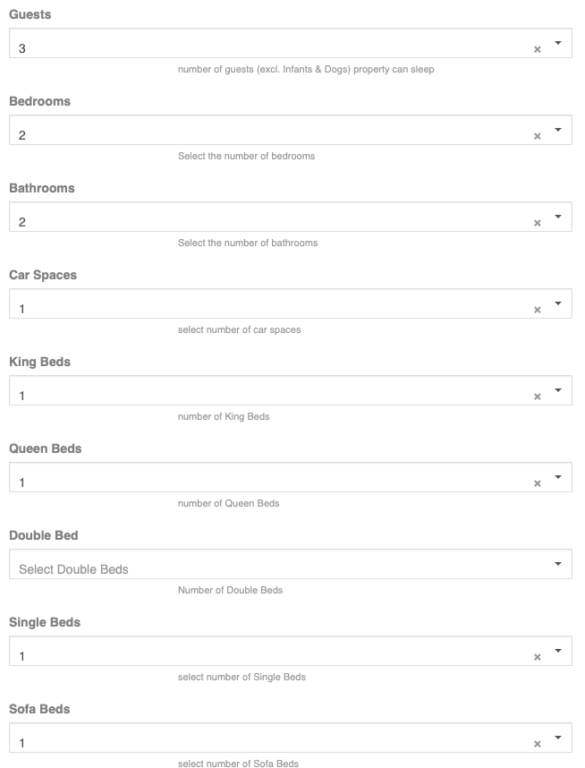
Guests
How many guests (adults & kids needing their own bed) does your property sleep
Rooms
Number of bedrooms, bathrooms and car spaces in the property
Beds
Number of different types of beds in the property (i.e. sleeping arrangements)
Property Amenities
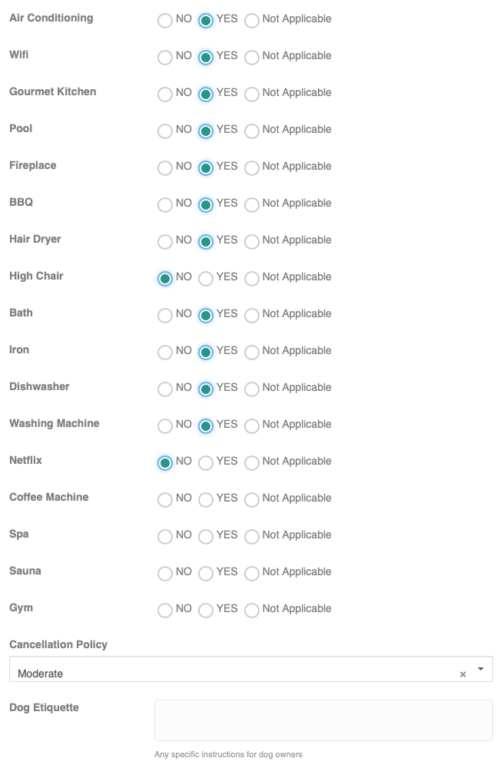
Amenities
List all amenities in your property
Cancellation Policy
Choose your Cancellation Policy. Find more information about Pupsy Cancellation Policies
EDIT BOOKING SETTINGS
Edit Listing Description has the details of your listing (description, photos, address, features, amenities...). Choose the listing you want to edit from the drop down menu and then click MANAGE PLACE --> Edit Listing Description
Booking Costs
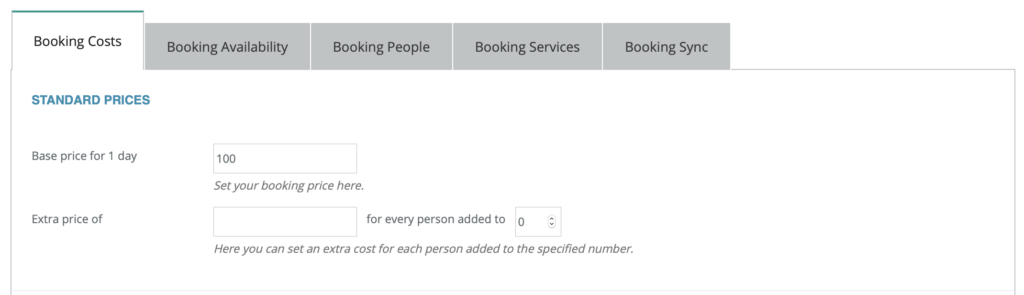
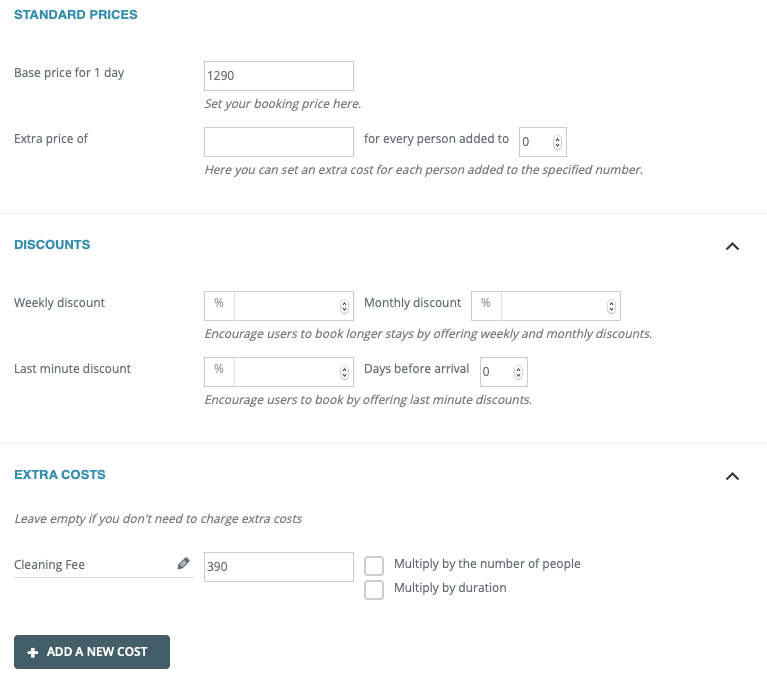
STANDARD PRICES
Base Price is your regular price / night.
Set Extra Price if you want to charge extra for every person over certain number e.g. $50 for each person added to 4. Otherwise, leave empty
DISCOUNTS
You can add a percentage discount for weekly, monthly or last minute bookings. Simply add the percentage. If you don't wish to give any discount, leave empty
EXTRA COSTS
You can add additional costs to your listing such as cleaning fee. This can be a one off costs or multiplied by number of people or duration. Simply click + ADD A NEW COST and define the rule
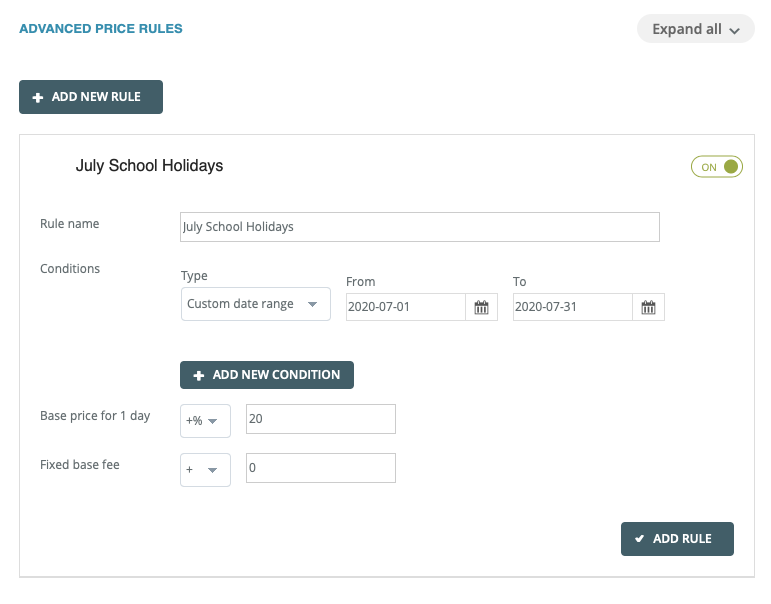
ADVANCED PRICE RULES
You can set your custom pricing rules with as many conditions as you like, such as
a) add +20% to certain custom date range
b) reduce price by -15% from Monday - Thursday
c) increase Nov-Dec by 20%
d) increase Base Price by $50
d) reduce Base Price by $50 for Fridays and Saturdays in July and August
e) set a different base price for any custom date range, months or days
Please see some examples at the end of the this page in the Q&A section
We recommend you always use Base Price for 1 day field and either select "+" (adds the amount to your daily rate), "+%" (adds the percentage to your daily rate) OR "=" (replaces your Base Price for the chosen period)
Couple of very important notes when creating Price Rules:
- If you have a weekend price that is different from weekday price, set this always as your first rule.
- Never add an empty condition as this will invalidate the entire rule.
- Do not use two Custom Date conditions in one rule as only one Custom Date condition per rule can be set. You can set a Custom Date and Range of Days in a single rule
After you have defined the rule, you can switch it OFF/ ON in the top right corner of the rule. Remember to click UPDATE on the top right corner after you have made the changes.
Let us know if you need help setting custom pricing rules for your listing [email protected]
Booking Availability
(You can also synchronise your availability through iCAL --> see section Booking Sync)
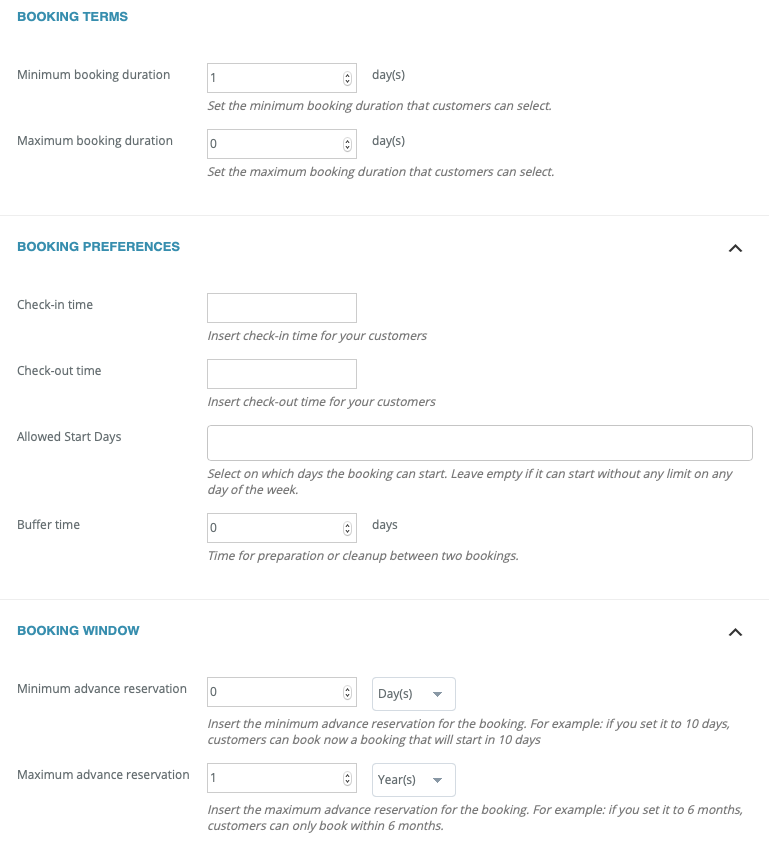
BOOKING TERMS
You can define your minimum & maximum booking durations e.g. minimum stay is 3 nights and you cannot book the place for longer than 30 nights. You can set custom minimum stay ranges below below the Booking Terms ("Custom Minimum Stay" section). Simply add the range and your min stay. To add another custom period, simply click ADD NEW RANGE.
BOOKING PREFERENCES
Define your check-in & check-out times
If you only allow bookings to start on a certain day of the week, define START DAYS, otherwise leave empty.
Buffer time defines how many days is required between the bookings e.g. 1 day means your next check-in cannot happen on a same day as the previous check out
BOOKING WINDOW
You can define how many days in advance you need to know about your booking. Maximum can be set if you want to limit how far in the future you accept bookings.
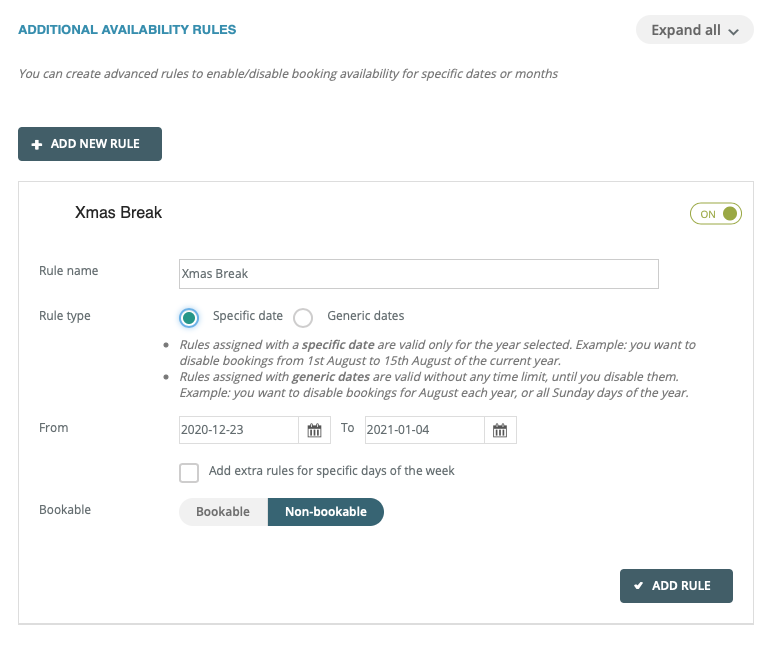
ADDITIONAL AVAILABILITY RULES
You can specify periods when your property is not available. This can be specific dates, weeks, months or even certain days of the week. After you have defined the rule, make sure you switch it on from the top right corner. If you have received a booking from a platform that is not using iCal sync, these dates need to be blocked on Pupsy using the Additional Availability Rules. Simply enter the dates, select Non-bookable and click ADD RULE
PUPSY BLOCK
To avoid bookings with draft or incomplete settings, we have created a rule that blocks all dates in your listing. Once you are happy with your settings, we will disable the block and your Listing will be bookable on Pupsy.
Booking People
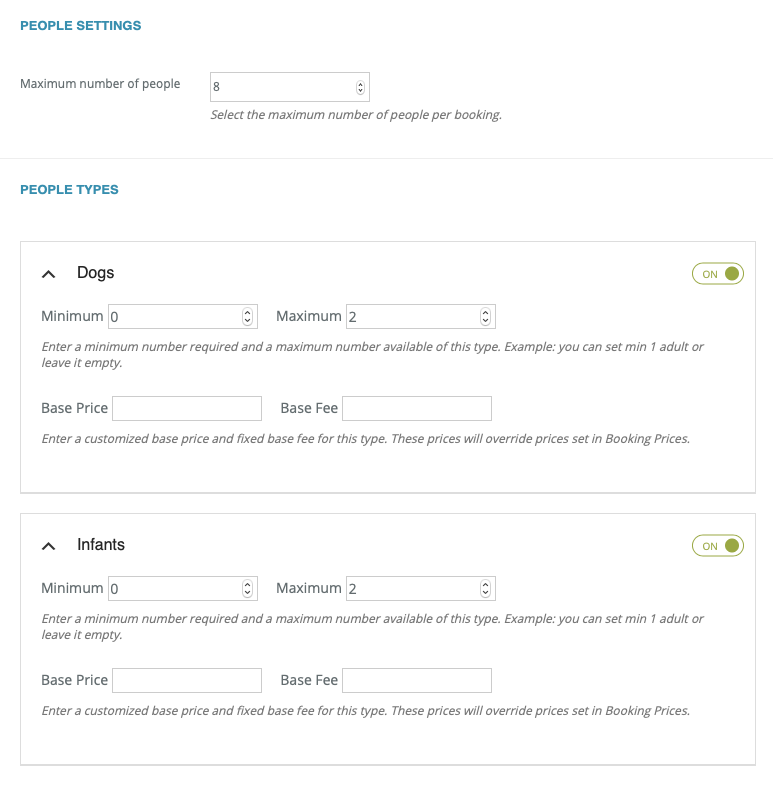
PEOPLE SETTINGS
Define the maximum number of guests (adults and kids who require their own bed).
OTHER GUESTS
You can define the number of dogs & infants that are allowed. If not applicable, leave empty). We recommend to add any Pet Fees at the "Booking Cost - Extra Costs" section, rather than defining them here.
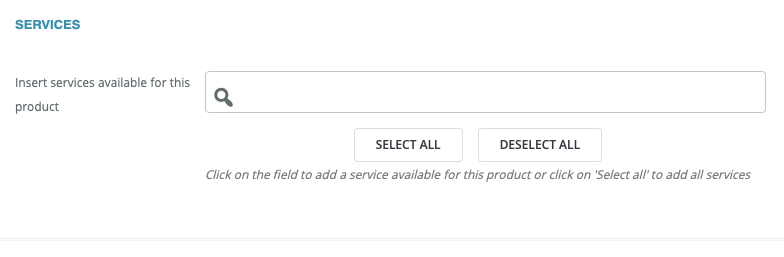
Booking Services
You can ignore this tab for the time being. We will get in touch when additional services can be added to your listing!
Calendar Sync
SYNCHRONISE THROUGH iCAL
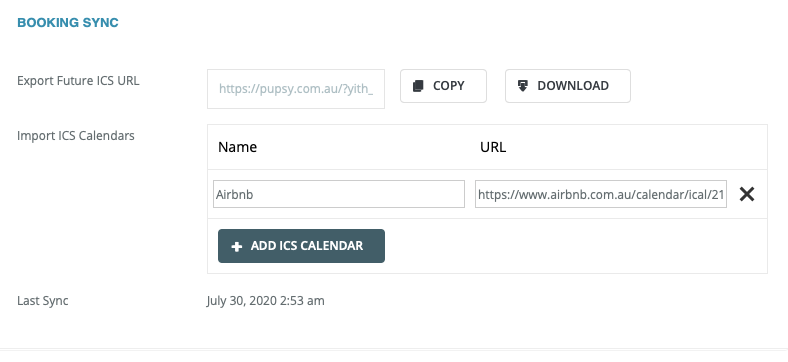
You can both IMPORT & EXPORT your iCAL from any platform that accepts the format. These include for example Airbnb, HomeAway, Booking.Com, Agoda, Google Cal...
We recommend that you FIRST import ALL of your calendars to synchronise your existing availability. Simply add your ICL URL link to the URL field and give your calendar a name e.g. Airbnb Calendar. It is important that you import all of your calendars as otherwise bookings will not be synchronised.
To export your calendar, use the calendar link sent to you by Pupsy. Detailed steps can be found from the articles below.
How to sync my calendar with Airbnb
https://www.airbnb.com/help/article/99/how-do-i-sync-my-airbnb-calendar-with-another-calendar
How to sync my calendar with Booking.Com
How to sync my calendar with HomeAway
https://help.homeaway.com.au/articles/How-do-I-import-my-iCal-or-Google-calendar
How to sync my calendar with Agoda
That's it, you're all set! Simply click UPDATE on the top right corner and your listing is ready to go.
Drop us a confirmation email at [email protected] or call 0428 533 960 and we will remove the block from your calendar. Need any help? Do not hesitate to contact us at any time. We are here to help you with any questions you may have.
Q & A
Q1: How do I test my price settings?
The best way to test your price settings is by finding your property on Pupsy [a link was emailed to you or you could search for your location etc.] and then adding some test searches.
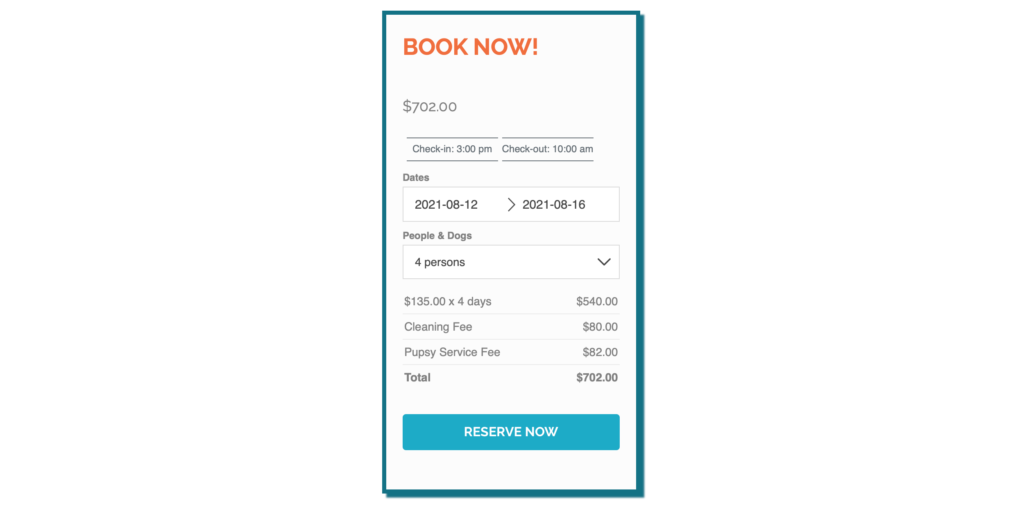
Simply enter some dates and number of people and dogs, wait a little while and Pupsy will display the costs for your search in the Booking Form [see below screenshot].
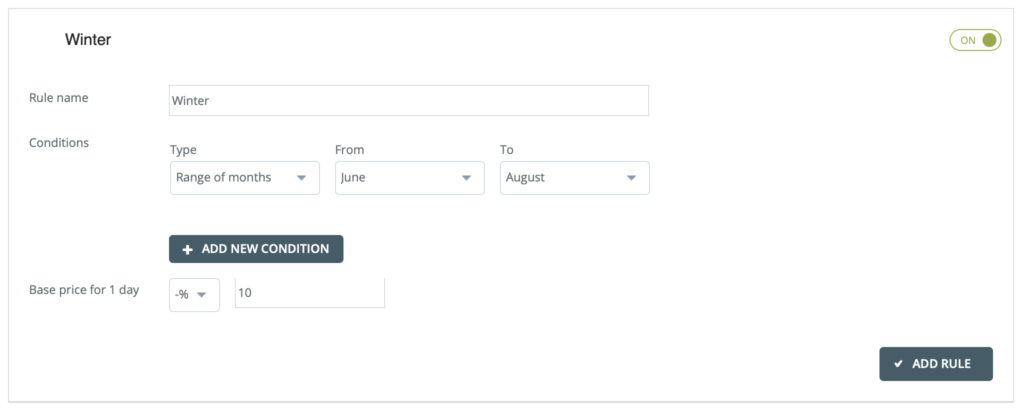
For Example I want to test the below scenario in Q6 with a base price of $100 and $200 for weekends for the winter [-10%]
I have added a test booking of 2021-08-12 to 2021-08-16 which is 4 nights - 2 weekend nights and 2 weekday nights and its calculated as follows:
Thursday Night = $100 - 10% = $90
Friday Night = $200 - 10% = $180
Saturday Night = $200 -10% = $180
Monday Night = $100 - 10% = $90
Total = $360 / 4 nights = $135
Voila it works 🙂
Q2: One of my rules does not get applied to my pricing, what's the issue?
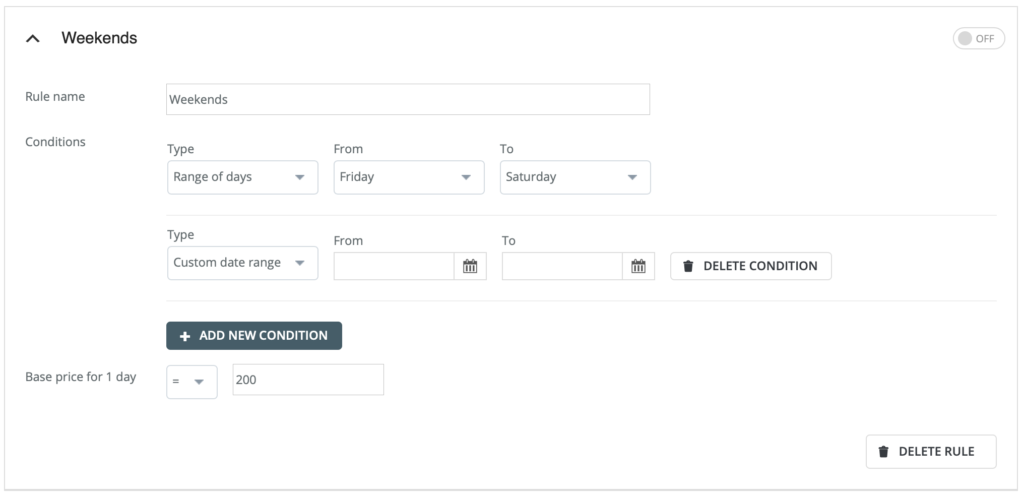
As mentioned in the above Help section, if you accidentally add a condition to a rule and leave it empty, the whole rule will be invalid. See below.
Fix this by clicking Delete Condition and then click Update to Save
Please retest if the rule is now applied as expected 🙂
If this still does not fix the issue, please email us on [email protected] [if you can with screenshots and how you calculated your result] we are happy to help!
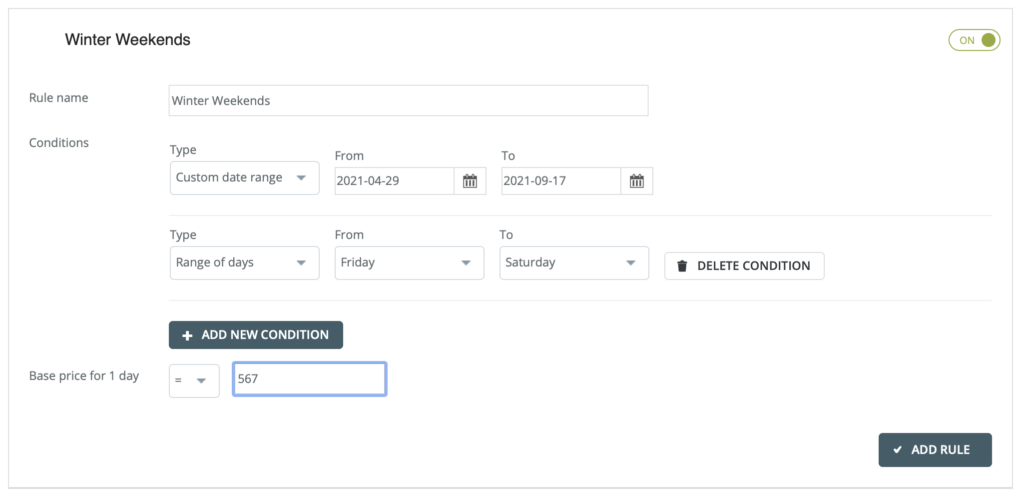
Q3: I want to set during Winter from 29.04.2021 to 17.09.2021 a weekend price of $567
Set as below and click Add Rule
[To save click Update - there is no need to save after every rule]
Please bare in mind that you should only have ONE Custom Date Range condition per rule as otherwise the rule won't work. As in this example, you can include Custom Date Range + Range of Days into a single rule.
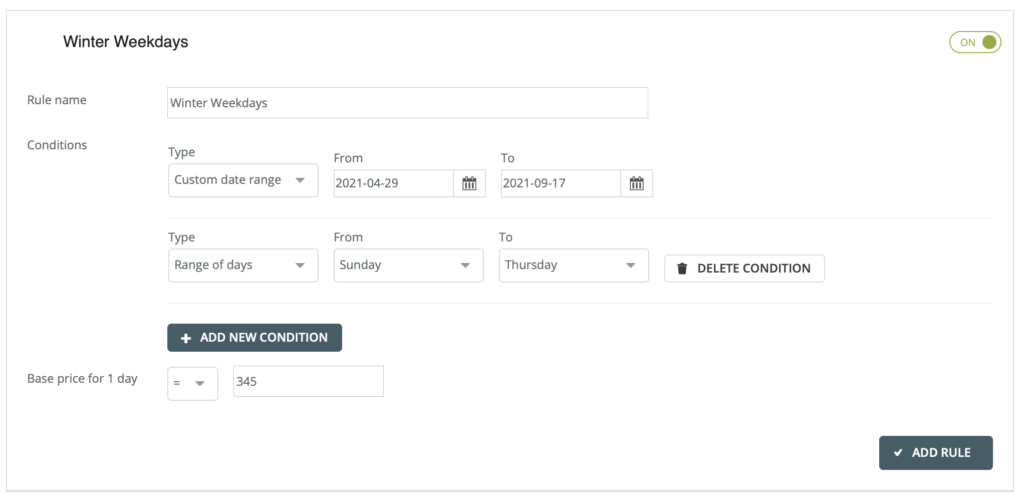
Q4: I want to set during Winter from 29.04.2021 to 17.09.2021 a weekday price of $345
Set as below and click Add Rule
[To save click Update - there is no need to save after every rule]
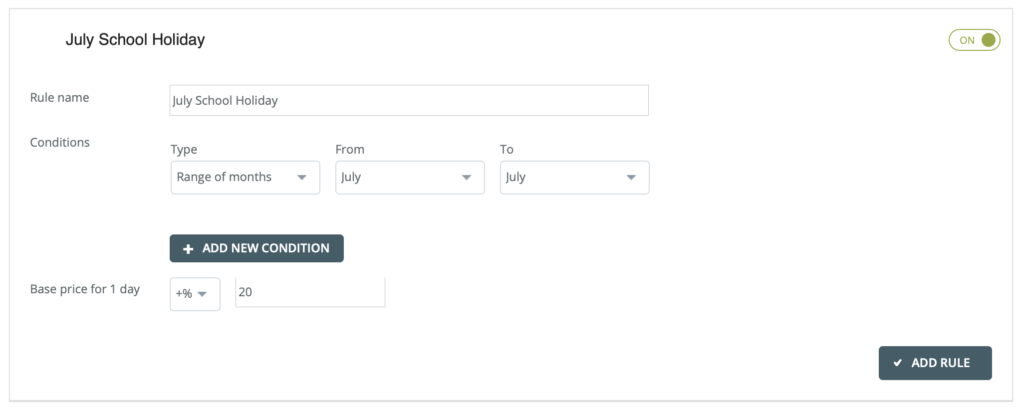
Q5: In addition to the above Winter weekends and weekdays I want to increase my base prices by 20 % during July due to the School holidays
Set as below and click Add Rule
[To save click Update - there is no need to save after every rule]
If this rule is set in addition to the above Winter weekends and weekdays from Q3 and Q4 the Result will be:
July Weekdays = Base price of $345 + 20% = $414 [Base price for 1 day +% 20]
July Weekends = Base price of $567 + 20% = $680.40 [Base price for 1 day +% 20]
29.04.2021 - 30.06.2021 and 01.08.21 - 17.09.21 Weekdays = $345
29.04.2021 - 30.06.2021 and 01.08.21 - 17.09.21 Weekends = $567
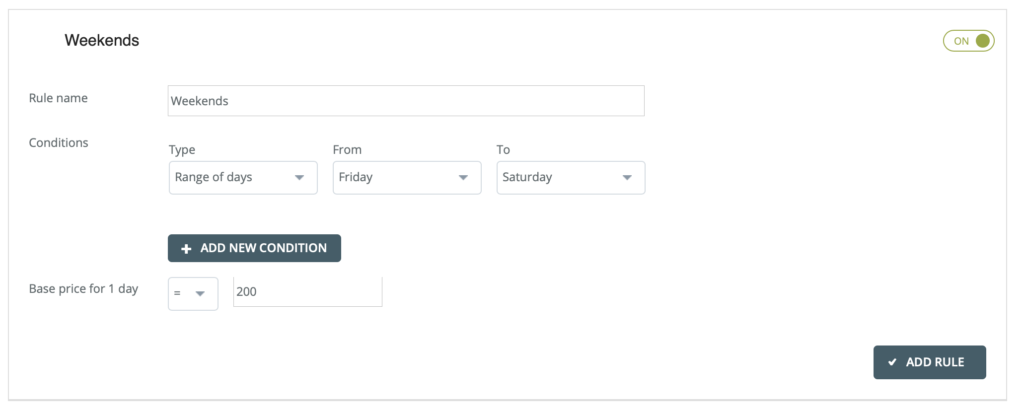
Q6: NEW SCENARIO: I have set my base price as 100 and want to charge 200 on all weekends.
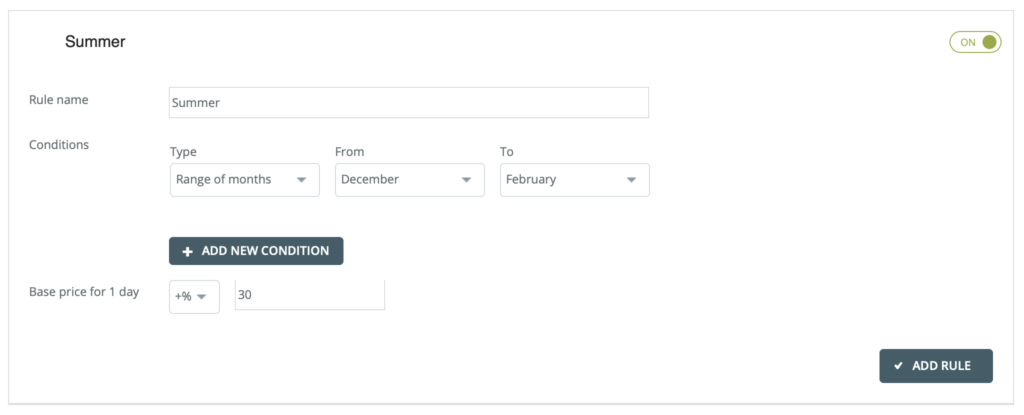
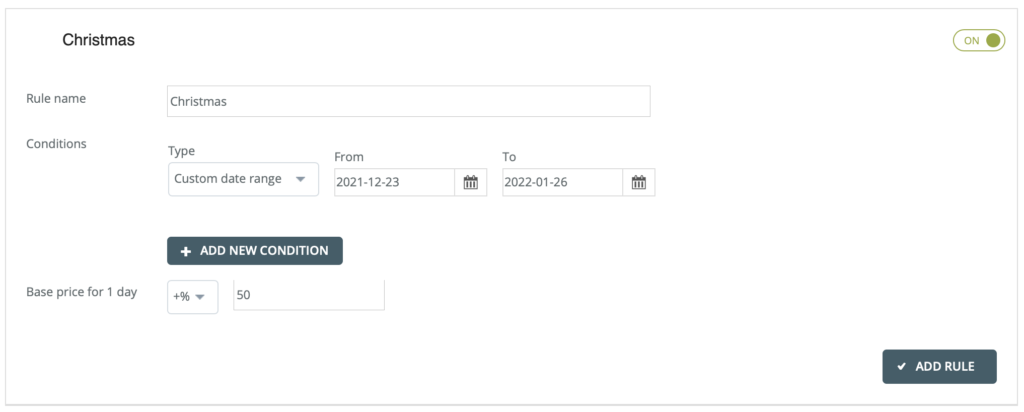
During the summer [Dec - Feb] I want to charge 30% more and during Christmas [23.12.21 - 26.01.22] I want to charge 50% on top of my base prices
During the winter [June - August] I want to reduce my base prices by 10%
For this scenario you have to set your base price to $100 and create the following 7 rules with one condition each
The Result will be:
From April until May and September to October all weekdays will be charged as $100 [Base Price for 1 day = 100]
From April until May and September to October all weekends will be charged as $200 [Base Price for 1 day = 200]
Only exception for these periods is the October Long weekend where the charge will be $300/ night [Base Price for 1 day = 300]
From December until February all weekdays except Christmas will be charged as $100 + 30% = $130 [Base Price for 1 day +% 30]
From December until February all weekends except Christmas will be charged as $200 + 30% = $260 [Base Price for 1 day +% 30]
From 23.12.2021 until 26.01.2022 all weekdays will be charged as $100 + 50% = $150 [Base Price for 1 day +% 50]
From 23.12.2021 until 26.01.2022 all weekends will be charged as $200 + 50% = $300 [Base Price for 1 day +% 50]
From June until August all weekdays except June Long Weekend will be charged as $100 - 10% = $90 [Base Price for 1 day -% 10]
From June until August all weekdays except June Long Weekend will be charged as $200 - 10% = $180 [Base Price for 1 day -% 10]